Appearance
If an implementation requires several actions, or there are simply too many actions that overload the menu, the actions can be placed into groups. This tutorial demonstrates adding an action to an existing group, creating a new action group, and action groups with a variable number of actions. The sample code discussed in this tutorial is from the action_basics code sample. See the Consulo plugin template for examples.
Some content in this tutorial assumes the reader is familiar with the tutorial for Creating Actions.
Simple Action Groups
In this first example, the action group will be available as a top-level menu item, and actions are represented as drop-down menu items. The group is based on a default Consulo implementation.
Creating Simple Groups
Groups can be registered by annotating a class with @ActionImpl or by using @ActionImpl on a DefaultActionGroup subclass. For simple static groups, the Consulo framework's default DefaultActionGroup implementation can be used directly. The id parameter must be unique, so incorporating the plugin ID or package name is the best practice.
The group's popup behavior, icon, and compact settings are configured through the group class or its Presentation. See Registering Actions with @ActionImpl for more information about these attributes.
java
@ActionImpl(id = "org.consulo.sdk.action.GroupedActions")
public class GroupedActions extends DefaultActionGroup {
    public GroupedActions() {
        super("Static Grouped Actions", true);
        getTemplatePresentation().setIcon(SdkIcons.Sdk_default_icon);
    }
}
Binding Action Groups to UI Components
The following sample shows how to use the parents parameter in @ActionImpl to place a custom action group relative to an entry in the Tools menu. The relatedToAction references the action id for PopupDialogAction, not a native Consulo menu entry. This group is placed after the single entry for the action PopupDialogAction, as defined in the tutorial Creating Actions.
java
@ActionImpl(id = "org.consulo.sdk.action.GroupedActions",
    parents = @ActionParentRef(
        value = @ActionRef(id = "ToolsMenu"),
        anchor = ActionRefAnchor.AFTER,
        relatedToAction = @ActionRef(id = "org.consulo.sdk.action.PopupDialogAction")
    ))
public class GroupedActions extends DefaultActionGroup {
    public GroupedActions() {
        super("Static Grouped Actions", true);
        getTemplatePresentation().setIcon(SdkIcons.Sdk_default_icon);
    }
}
Adding a New Action to the Static Grouped Actions
The PopupDialogAction implementation will be reused and registered in the newly created static group. To add a child action to the group, use the children parameter on the group's @ActionImpl. Alternatively, a separate action class with its own @ActionImpl can reference the group as its parent.
In this example, we create a new action class GroupPopDialogAction that extends PopupDialogAction and registers it as a child of the group. The id for this action is set to a unique value, org.consulo.sdk.action.GroupPopDialogAction, to differentiate it from the id used in the Creating Actions tutorial. A unique id supports reuse of action classes in more than one menu or group.
java
@ActionImpl(id = "org.consulo.sdk.action.GroupedActions",
    parents = @ActionParentRef(
        value = @ActionRef(id = "ToolsMenu"),
        anchor = ActionRefAnchor.AFTER,
        relatedToAction = @ActionRef(id = "org.consulo.sdk.action.PopupDialogAction")
    ),
    children = @ActionRef(type = GroupPopDialogAction.class))
public class GroupedActions extends DefaultActionGroup {
    public GroupedActions() {
        super("Static Grouped Actions", true);
        getTemplatePresentation().setIcon(SdkIcons.Sdk_default_icon);
    }
}

@ActionImpl(id = "org.consulo.sdk.action.GroupPopDialogAction")
public class GroupPopDialogAction extends PopupDialogAction {
    public GroupPopDialogAction() {
        super("A Group Action", "SDK static grouped action example", SdkIcons.Sdk_default_icon);
    }
}
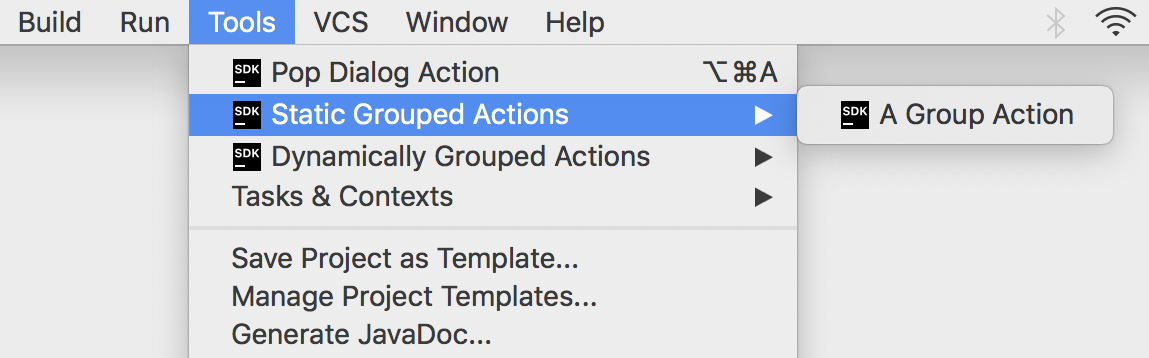
After performing the steps described above, the action group and its content will be available in the Tools menu. The underlying PopupDialogAction implementation is reused for two entries in the Tools menu:
- Once for the top menu entry Tools | Pop Dialog Action with the action
idequal toorg.consulo.sdk.action.PopupDialogActionas set in the Creating Actions tutorial. - A second time for the menu entry Tools | Static Grouped Actions | A Group Action with the action
idequal toorg.consulo.sdk.action.GroupPopDialogAction.
Implementing Custom Action Group Classes
In some cases, the specific behavior of a group of actions needs to depend on the context. The solution is analogous to making a single action entry dependent on context.
The steps below show how to make a group of actions available and visible if certain conditions are met. In this case, the condition is having an instance of an editor is available. This condition is needed because the custom action group is added to a Consulo menu that is only enabled for editing.
Extending DefaultActionGroup
The DefaultActionGroup is an implementation of ActionGroup. The DefaultActionGroup class is used to add child actions and separators between them to a group. This class is used if a set of actions belonging to the group does not change at runtime.
As an example, extend DefaultActionGroup to create the CustomDefaultActionGroup class in the action_basics code sample:
java
  public class CustomDefaultActionGroup extends DefaultActionGroup {
    @Override
    public void update(AnActionEvent event) {
      // Enable/disable depending on whether user is editing...
    }
  }
Registering the Custom Action Group
As in the case with the static action group, the custom group is registered using the @ActionImpl annotation. For demonstration purposes, this implementation will use localization.
The @ActionImpl declaration below shows:
- The annotated class
CustomDefaultActionGroupis the group implementation, telling the Consulo framework to use it rather than the defaultDefaultActionGroup. - The group is configured as a popup (submenu) in its constructor.
- The
textanddescriptionare omitted from the constructor in favor of using the localize system to define them. - There is no icon set in the annotation; the
CustomDefaultActionGroupimplementation will add an icon for the group. - The
parentsparameter specifies adding the group in the first position of the existingEditorPopupMenu.
java
@ActionImpl(id = "org.consulo.sdk.action.CustomDefaultActionGroup",
    parents = @ActionParentRef(value = @ActionRef(id = "EditorPopupMenu"), anchor = ActionRefAnchor.FIRST))
public class CustomDefaultActionGroup extends DefaultActionGroup {
    public CustomDefaultActionGroup() {
        super(true); // popup = true
    }
}
Adding Actions to the Custom Group
As in Static Grouped Actions, the PopupDialogAction action is added as a child of the group using the children parameter. In the declaration below:
- The
childrenparameter referencesCustomGroupedAction.classto include it in the group. - The child action's
idis unique to distinguish it from other uses of the implementation in the Action System. - The
textanddescriptionfor the child action are defined using the localize system. - The SDK icon is set in the child action class.
java
@ActionImpl(id = "org.consulo.sdk.action.CustomDefaultActionGroup",
    parents = @ActionParentRef(value = @ActionRef(id = "EditorPopupMenu"), anchor = ActionRefAnchor.FIRST),
    children = @ActionRef(type = CustomGroupedAction.class))
public class CustomDefaultActionGroup extends DefaultActionGroup {
    public CustomDefaultActionGroup() {
        super(true); // popup = true
    }
}

@ActionImpl(id = "org.consulo.sdk.action.CustomGroupedAction")
public class CustomGroupedAction extends PopupDialogAction {
    public CustomGroupedAction() {
        super(null, null, SdkIcons.Sdk_default_icon);
        // text and description provided via Localize class
    }
}
Now the text and description values must be provided via the generated Localize class. See Localization for details on defining localize entries. Note there are two sets of text and description values, one for the action and one for the group.
Providing Specific Behavior for the Custom Group
Override the CustomDefaultActionGroup.update() method to make the group visible only if there's an instance of the editor available. Also, a custom icon is added to demonstrate that group icons can be changed depending on the action context:
java
public class CustomDefaultActionGroup extends DefaultActionGroup {
  @Override
  public void update(AnActionEvent event) {
    // Enable/disable depending on whether user is editing
    Editor editor = event.getData(CommonDataKeys.EDITOR);
    event.getPresentation().setEnabled(editor != null);
    // Take this opportunity to set an icon for the group.
    event.getPresentation().setIcon(SdkIcons.Sdk_default_icon);
  }
}
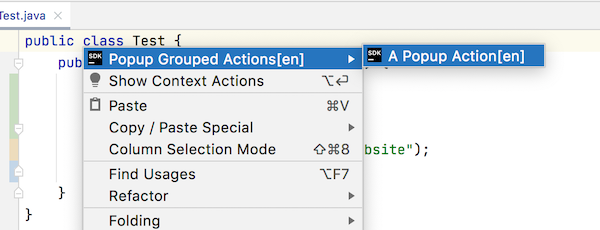
After compiling and running the code sample above and opening a file in the editor and right-clicking, the Editing menu will pop up containing a new group of actions in the first position. Note the group and actions come from the resource file as all contain the suffix "[en]". The new group will also have an icon:
Action Groups with Variable Actions Sets
If a set of actions belonging to a custom group varies depending on the context, the group must extend ActionGroup. The set of actions in the ActionGroup is dynamically defined.
Creating Variable Action Group
To create a group of actions with a variable number of actions, extend ActionGroup. For example, as in the action_basics class DynamicActionGroup code:
java
public class DynamicActionGroup extends ActionGroup {
}
Registering a Variable Action Group
To register the dynamic menu group, annotate the class with @ActionImpl. When enabled, this group appears at the entry just below the Static Grouped Actions in the Tools menu:
java
@ActionImpl(id = "org.consulo.sdk.action.DynamicActionGroup",
    parents = @ActionParentRef(
        value = @ActionRef(id = "ToolsMenu"),
        anchor = ActionRefAnchor.AFTER,
        relatedToAction = @ActionRef(id = "org.consulo.sdk.action.GroupedActions")
    ))
public class DynamicActionGroup extends ActionGroup {
    public DynamicActionGroup() {
        super("Dynamically Grouped Actions", "SDK dynamically grouped action example", SdkIcons.Sdk_default_icon);
        setPopup(true);
    }
}
WARNING
If a class derived from ActionGroup is annotated with @ActionImpl, the children parameter must not be used to declare static child actions. Static children will throw an exception.
For a statically defined group, use DefaultActionGroup.
Adding Child Actions to the Dynamic Group
To add actions to the DynamicActionGroup, a non-empty array of AnAction instances should be returned from the DynamicActionGroup.getChildren() method. Here again, reuse the PopupDialogAction implementation. This use case is why PopupDialogAction overrides a constructor:
java
public class DynamicActionGroup extends ActionGroup {
  @NotNull
  @Override
  public AnAction[] getChildren(AnActionEvent e) {
    return new AnAction[]{ new PopupDialogAction("Action Added at Runtime",
                                                 "Dynamic Action Demo",
                                                 SdkIcons.Sdk_default_icon) };
  }
}
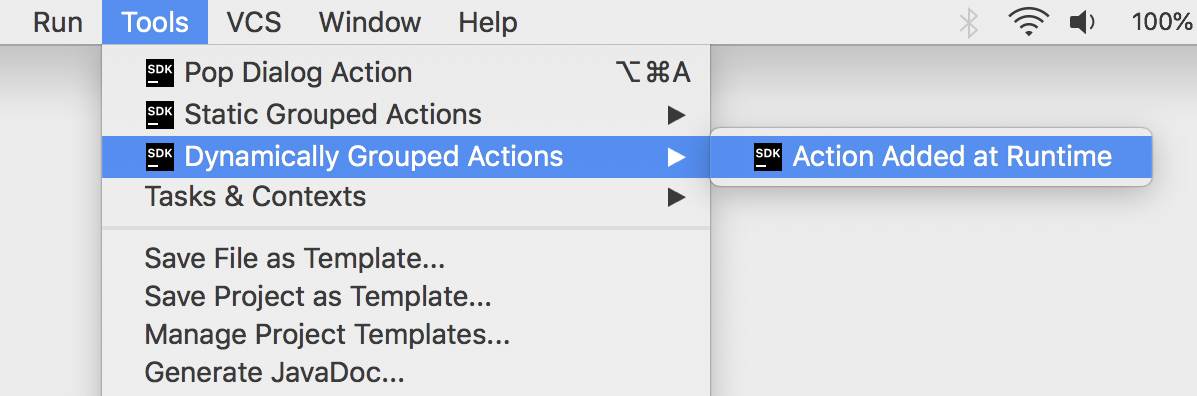
After providing the implementation of DynamicActionGroup and making it return a non-empty array of actions, the third position in the Tools menu will contain a new group of actions: