Appearance
INFO
For new projects, it is highly recommended to use Maven.
Preliminary Steps
Use the following checklist to ensure that you are ready to develop your custom plugins.
- Get Consulo source code on your local computer. Getting Consulo source code is not a requirement for plugin development, but having it makes debugging your plugins much more straightforward. For detailed instructions, refer to the Getting Consulo Source Code section of Check Out And Build Consulo. Note that building Consulo from source code is not required for plugin development.
- Consulo SDK must be configured for your IDEA project. For more information, see below.
Configuring Consulo SDK
To set up your plugin development environment:
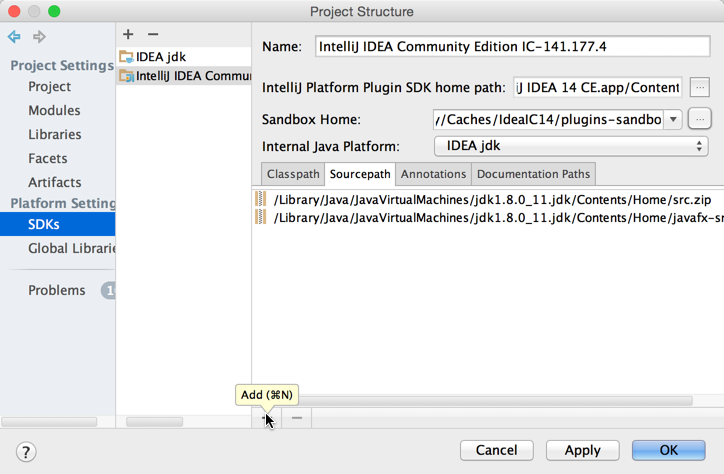
Create a new Consulo SDK under File | Project Structure:
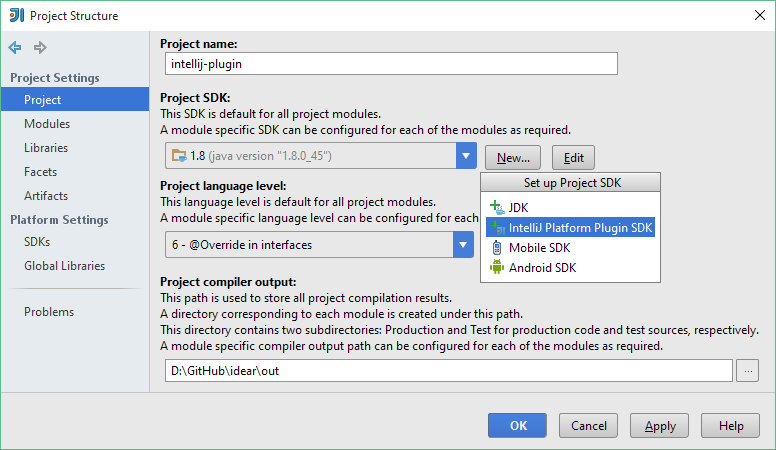
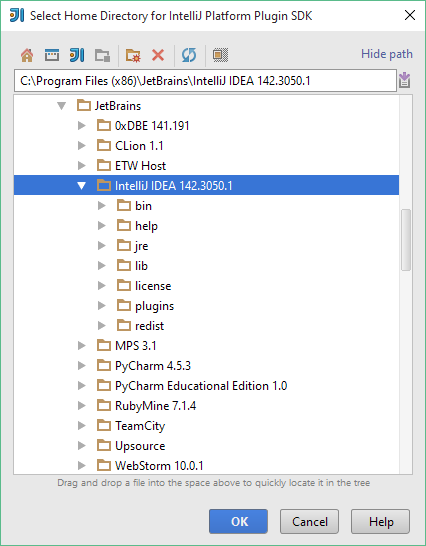
Specify the installation folder of Consulo as the home directory.
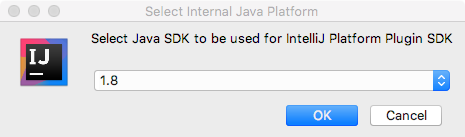
Select JDK 21 as the default Java SDK. See the Build Configuration section of Check Out And Build Consulo for instructions about configuring JDK 21.
In the Sourcepath tab of the SDK settings, click the Add button:
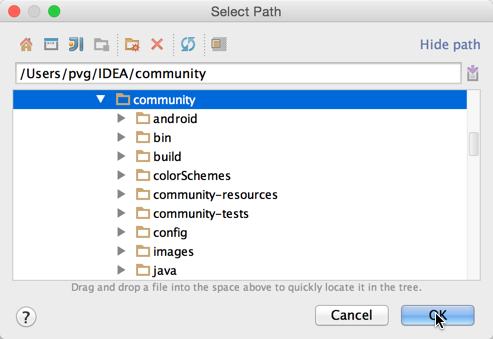
Specify the source code directory for Consulo:
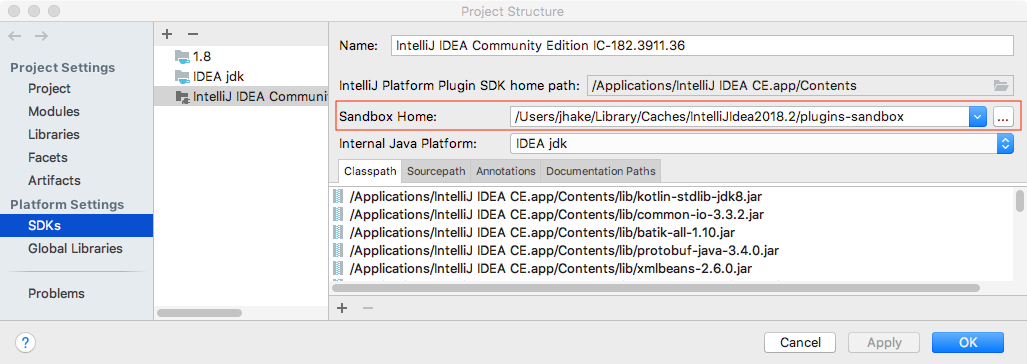
Specify the Sandbox Home directory. The Sandbox Home directory stores the settings of the IDE development instance launched from a Plugin Project's Run configuration. Shown below is the default Sandbox Home directory for a user on Mac OS X. Any directory can be chosen as the Sandbox Home location. Use the ellipsis button (shown below) to define a custom location.
See the IDE Development Instances page for more information about default Sandbox Home directory locations and contents.